Take ownership of a check-in with an inactive owner
A check-in you need to manage is stuck: you can’t edit, deactivate, delete, or reassign it because its owner is no longer active in the organization (they left the company or were deactivated). Every check-in has an owner who holds most of the permissions over it, so when that owner becomes inactive the check-in is effectively orphaned.
If you’re an organization admin, you can now take ownership of that check-in and manage it normally again.
Who can do this
- Only active organization admins can take ownership.
- The option does not appear for regular members.
When the option appears
The Take ownership option only shows when:
- The check-in’s current owner is inactive (deactivated at the account or organization level), or
- The check-in has no owner.
If the owner is still active, the option is hidden — an admin can’t take a check-in away from an active owner.
How to spot an inactive owner: open the check-in details. The owner’s name shows an “(Inactive User)” label next to it (for example, Catalina (Inactive User)).
How to take ownership
You can do this from two places inside Check-ins.
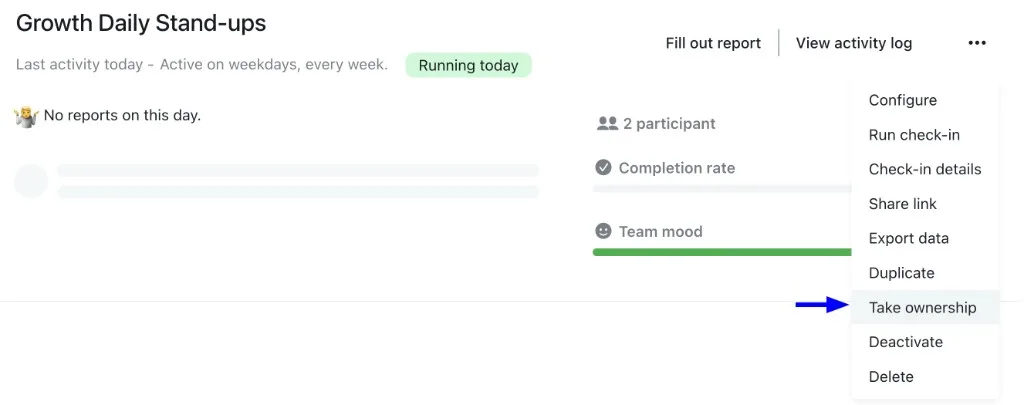
Option A — From the check-ins list
- Go to Check-ins.
- On the check-in card, open the three-dots menu (⋯).
- Click Take ownership.
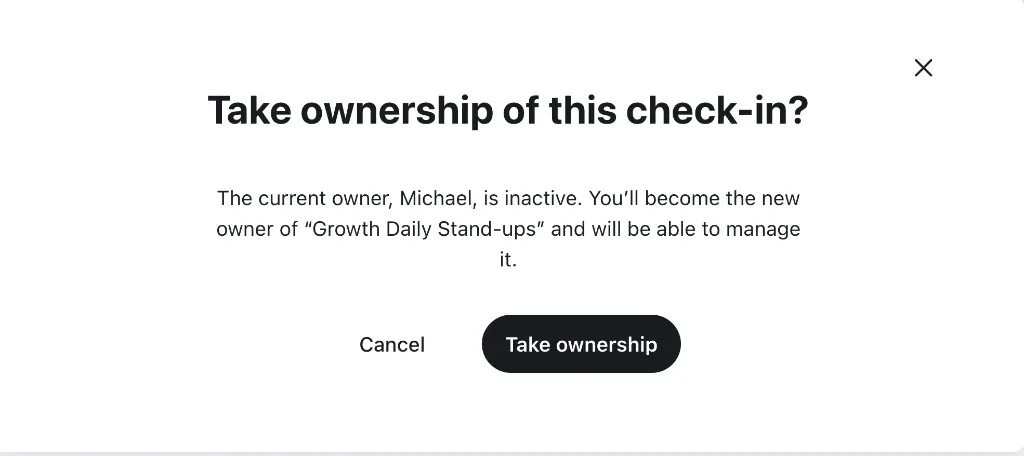
- A confirmation dialog appears: “Take ownership of this check-in? The current owner, [name], is inactive. You’ll become the new owner of “[check-in name]” and will be able to manage it.“
- Confirm with Take ownership (or Cancel to dismiss).
- You’ll see “You are now the owner of this check-in” — you’re now the owner.
Option B — From inside the check-in
- Open the check-in.
- Open the three-dots menu (⋯) at the top.
- Click Take ownership and confirm (same steps 4–6 above).
What happens after you take ownership
- You become the new owner and can edit, deactivate, delete, and manage the check-in normally.
- You’re added as a read-only participant (you’ll appear in the participants list) without being asked to fill out the check-in. Taking ownership does not force you to respond to it.
Handing the check-in to the right person
If you took ownership just to unblock the check-in but someone else should really own it (for example, the person who replaced the one who left):
- Go to the check-in’s Settings → Participants.
- In that participant’s three-dots menu, use Transfer ownership to hand it over.
This participant-to-participant transfer already existed and hasn’t changed.
FAQ
Can I take ownership of any check-in?
No. Only when the current owner is inactive or the check-in has no owner. If the owner is active, the option doesn’t appear.
Who can do this?
Only active organization admins.
Does the previous owner lose anything?
The previous owner was already inactive and couldn’t operate the check-in. Taking ownership simply makes you the new owner.
Does taking ownership make me respond to the check-in?
No. You’re added as a read-only participant; you won’t be asked to fill it out.
What if someone else should own it?
After taking it, use Transfer ownership from Participants to hand it to the right person.
I don’t see “Take ownership” — why?
Most likely because either (a) you’re not an organization admin, or (b) the check-in’s owner is still active, in which case the option is hidden.