Funções e permissões
O Dailybot tem quatro funções que controlam o que cada pessoa pode fazer. Esta referência cobre todas elas.
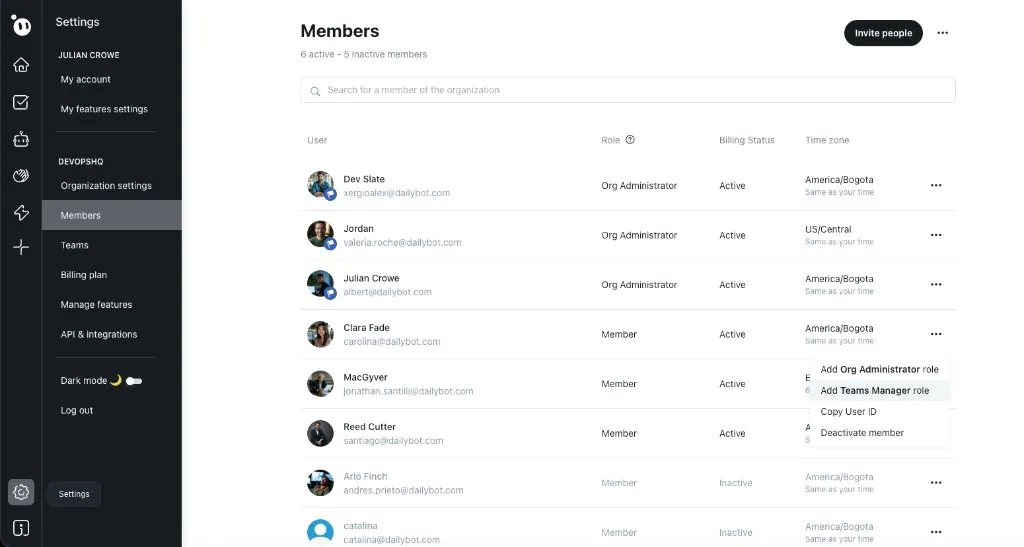
Visão geral das funções
| Função | Alcance | Quem atribui |
|---|---|---|
| Organization Admin | Controle total em toda a organização | Quem instala primeiro; outros admins |
| Team Manager | Gerencia as equipes atribuídas | Organization Admin |
| Member | Função padrão de todos os usuários | Automática ao entrar |
| Check-in Owner | Controla um check-in específico | Organization Admin ou Team Manager |
Matriz de permissões
| Permissão | Org Admin | Team Manager | Member | Check-in Owner |
|---|---|---|---|---|
| Ver as próprias respostas do check-in | Sim | Sim | Sim | Sim |
| Responder aos check-ins | Sim | Sim | Sim | Sim |
| Dar e receber kudos | Sim | Sim | Sim | Sim |
| Criar check-ins | Sim | Sim | Não | Não |
| Editar as perguntas e o horário do check-in | Sim | Equipes próprias | Não | Apenas o check-in atribuído |
| Ver os relatórios de check-in da equipe | Sim | Equipes próprias | Não | Apenas o check-in atribuído |
| Criar formulários | Sim | Sim | Não | Não |
| Criar automações | Sim | Sim | Não | Não |
| Gerenciar a participação na equipe | Sim | Equipes próprias | Não | Não |
| Convidar membros para a organização | Sim | Não | Não | Não |
| Remover membros da organização | Sim | Não | Não | Não |
| Alterar a função de um membro | Sim | Não | Não | Não |
| Ver e gerenciar o faturamento | Sim | Não | Não | Não |
| Alterar as configurações da organização | Sim | Não | Não | Não |
| Conectar ou desconectar plataformas de chat | Sim | Não | Não | Não |
| Excluir a organização | Sim | Não | Não | Não |
| Definir o fuso horário e o horário de lembrete pessoais | Sim | Sim | Sim | Sim |
| Ver o painel do agente e o feed Home | Sim | Sim | Sim | Sim |
| Conectar um agente de programação | Sim | Sim | Sim | Não |
Casos especiais
Observação: Uma pessoa pode ser ao mesmo tempo Team Manager e Check-in Owner. As permissões se acumulam, então ela obtém a união das capacidades de ambas as funções.
Observação: A primeira pessoa a instalar o Dailybot em uma plataforma de chat se torna automaticamente um Organization Admin. Sempre deve haver pelo menos um Organization Admin em cada organização.
Observação: O Check-in Owner está limitado a um check-in específico, não a toda a organização. Alguém pode ser dono de um check-in sem ter permissões especiais sobre os outros.