Invitar miembros desde Discord
Invita a personas de tu servidor de Discord a Dailybot para que los standups, los kudos y las automatizaciones funcionen con las mismas personas con las que ya colaboras.
Antes de empezar
- Necesitas permisos de Organization admin o Team manager.
- Dailybot debe estar agregado al servidor de Discord desde el que vas a invitar.
Pasos
- Abre el panel web de Dailybot e inicia sesión.
- Haz clic en Settings en la barra lateral y luego selecciona Members.
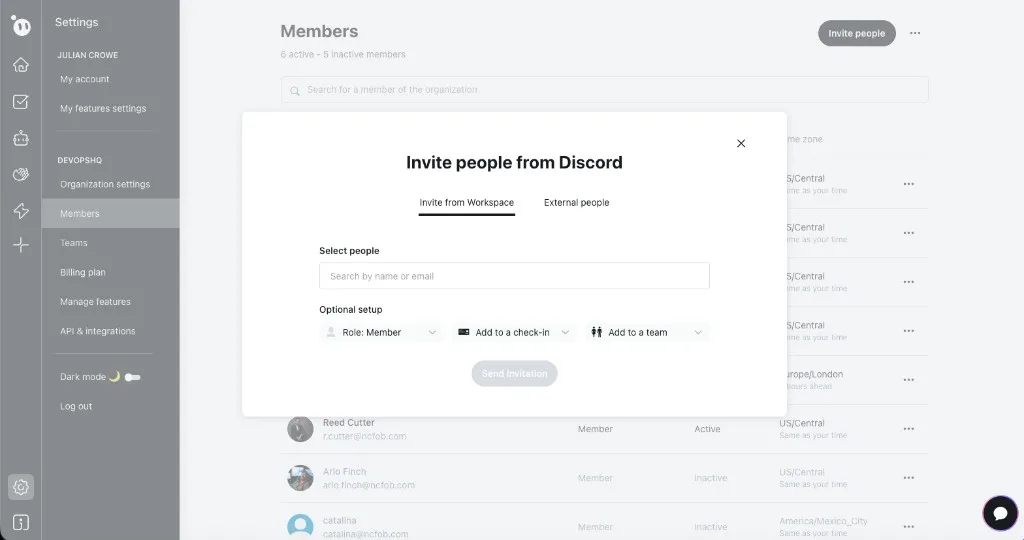
- Haz clic en el botón Invite people en la esquina superior derecha.
- En el diálogo Invite people from Discord, elige la pestaña Invite from Workspace para ver a las personas que ya están en tu servidor de Discord, o cambia a External people para invitar por correo electrónico.
- Busca por nombre o correo electrónico para encontrar a las personas que quieres agregar.
- En Optional setup, elige un Role (Member por defecto), opcionalmente asígnales un check-in y opcionalmente agrégalos a un team.
- Haz clic en Send invitation.
- Si alguien no aparece en la búsqueda, confirma que está en el servidor de Discord conectado y que el bot de Dailybot tiene los permisos necesarios.
Qué esperar después
Los invitados reciben un aviso para vincular Discord con tu organización de Dailybot. Puede aparecer como un DM de Dailybot, un mensaje en un canal o un paso de autorización en el navegador. Una vez que terminan, pueden usar los comandos y funciones de Dailybot en Discord y aparecen en la página de Members.