Convidar membros do Slack
Convide as pessoas que já usam seu workspace do Slack para que cheguem à organização do Dailybot certa com a função adequada. Os convites mantêm o Slack como a via principal de login, então a maioria dos colegas nunca precisa gerenciar uma senha separada só para o Dailybot.
Antes de começar
- Você precisa de permissões de Organization admin ou Team manager (os rótulos exatos podem variar conforme o plano).
- O Dailybot deve estar instalado e autorizado para o workspace do Slack a partir do qual você vai convidar.
Passos
- Abra o painel web do Dailybot e faça login.
- Clique em Settings na barra lateral e depois selecione Members.
- Clique no botão Invite people no canto superior direito.
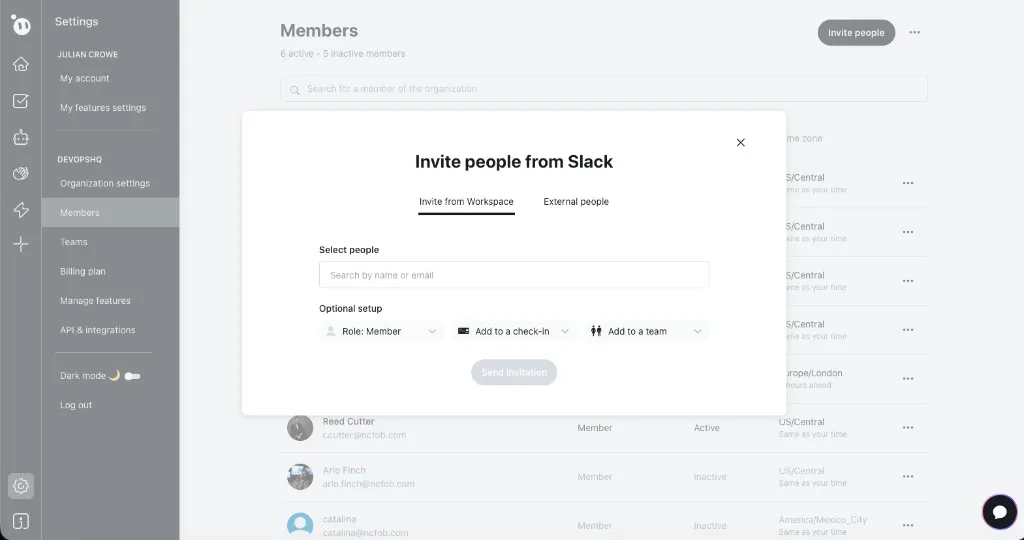
- No diálogo Invite people from Slack, escolha a aba Invite from Workspace para ver as pessoas que já estão no seu workspace do Slack, ou mude para External people para convidar por e-mail.
- Busque por nome ou e-mail para encontrar as pessoas que você quer adicionar.
- Em Optional setup, escolha um Role (Member por padrão), opcionalmente atribua a elas um check-in e opcionalmente adicione-as a um team.
- Clique em Send invitation.
- Se alguém não aparecer na busca, confirme que essa pessoa está no workspace do Slack conectado e que suas configurações de entrada a permitem.
O que esperar depois
Os convidados recebem um fluxo que vincula a identidade do Slack à sua organização do Dailybot. Eles podem ver uma mensagem direta do Dailybot no Slack, um e-mail ou um aviso dentro do app, dependendo da sua configuração e das configurações de notificação deles. Depois de aceitarem, eles aparecem em Members e podem usar o Dailybot no Slack sem criar uma organização separada.