Convidar membros do Google Chat
Convide as pessoas do seu workspace do Google Chat para o Dailybot para que entrem com o acesso certo desde o primeiro dia.
Antes de começar
- Você precisa de permissões de Organization admin ou Team manager.
- O Dailybot deve estar conectado ao Google Chat para o seu Google Workspace.
Passos
- Abra o painel web do Dailybot e faça login.
- Clique em Settings na barra lateral e depois selecione Members.
- Clique no botão Invite people no canto superior direito.
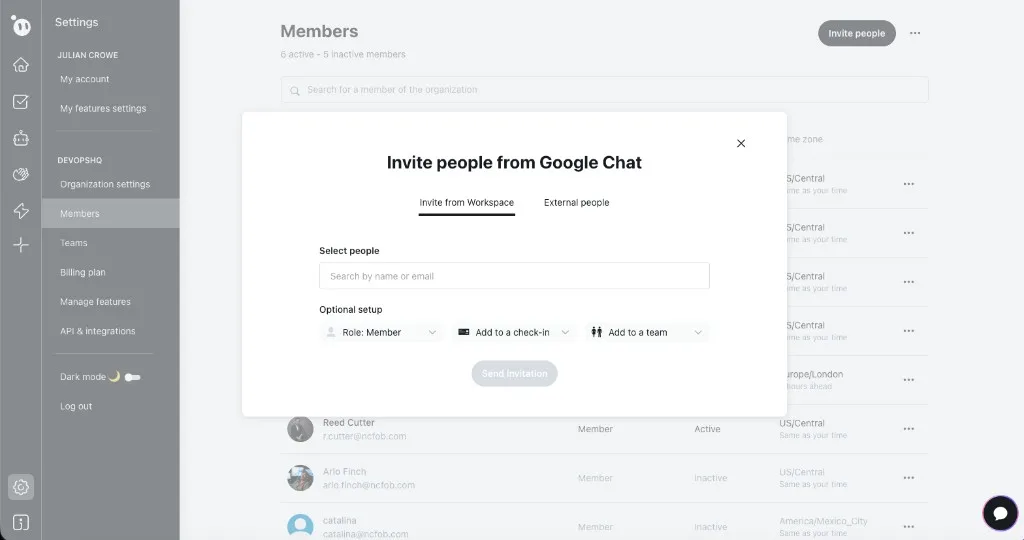
- No diálogo Invite people from Google Chat, escolha a aba Invite from Workspace para ver as pessoas que já estão no seu Google Workspace, ou mude para External people para convidar por e-mail.
- Busque por nome ou e-mail para encontrar as pessoas que você quer adicionar.
- Em Optional setup, escolha um Role (Member por padrão), opcionalmente atribua a elas um check-in e opcionalmente adicione-as a um team.
- Clique em Send invitation.
- Se alguém não aparecer na busca, verifique se essa pessoa existe no mesmo Google Workspace e se o Chat está habilitado para ela.
O que esperar depois
Os convidados concluem uma curta etapa de vinculação para que o Dailybot reconheça a identidade do Google Chat deles. Eles podem receber uma mensagem no Chat do app do Dailybot ou um e-mail de acompanhamento para concluir a aceitação. Uma vez aceito, eles podem interagir com o Dailybot no Google Chat e aparecem na sua lista de membros.