Invite members from Google Chat
Invite people from your Google Chat workspace into Dailybot so they join with the right access from day one.
Before you begin
- You need Organization admin or Team manager permissions.
- Dailybot must be connected to Google Chat for your Google Workspace.
Steps
- Open the Dailybot web dashboard and sign in.
- Click Settings in the sidebar, then select Members.
- Click the Invite people button in the top-right corner.
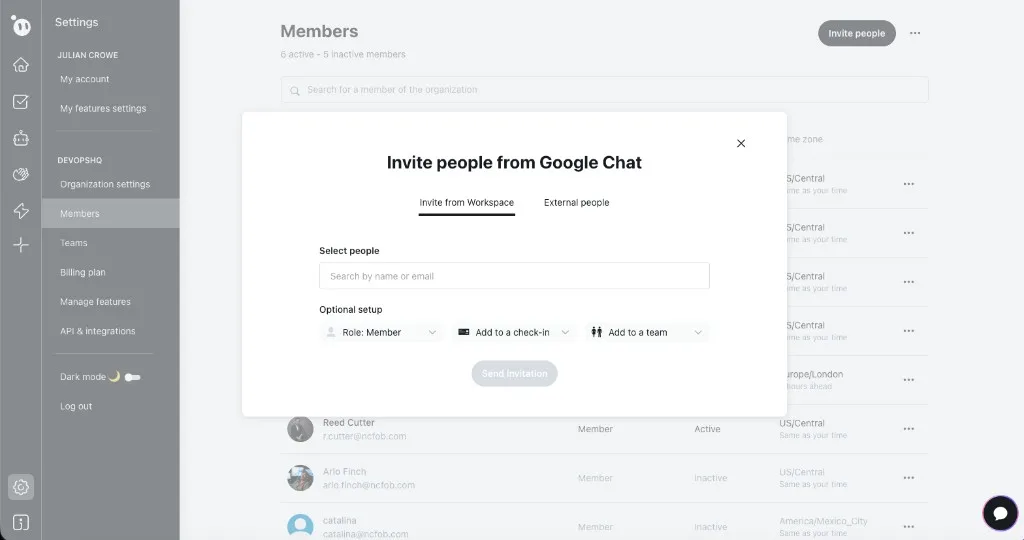
- In the Invite people from Google Chat dialog, choose the Invite from Workspace tab to see people already in your Google Workspace, or switch to External people to invite by email.
- Search by name or email to find the people you want to add.
- Under Optional setup, choose a Role (Member by default), optionally assign them to a check-in, and optionally add them to a team.
- Click Send invitation.
- If someone does not appear in the search, verify they exist in the same Google Workspace and that Chat is enabled for them.
What to expect after
Invitees complete a short linking step so Dailybot recognizes their Google Chat identity. They may get a Chat message from the Dailybot app or a follow-up email to finish accepting. Once accepted, they can interact with Dailybot in Google Chat and appear in your member list.