Invite members from Microsoft Teams
Invite people from your Microsoft Teams workspace into Dailybot so membership stays aligned with your tenant. This keeps accounts centralized and gives admins clear control over who joins.
Before you begin
- You need Organization admin or Team manager permissions.
- The Dailybot Teams app must be installed and consented for your tenant.
Steps
- Open the Dailybot web dashboard and sign in.
- Click Settings in the sidebar, then select Members.
- Click the Invite people button in the top-right corner.
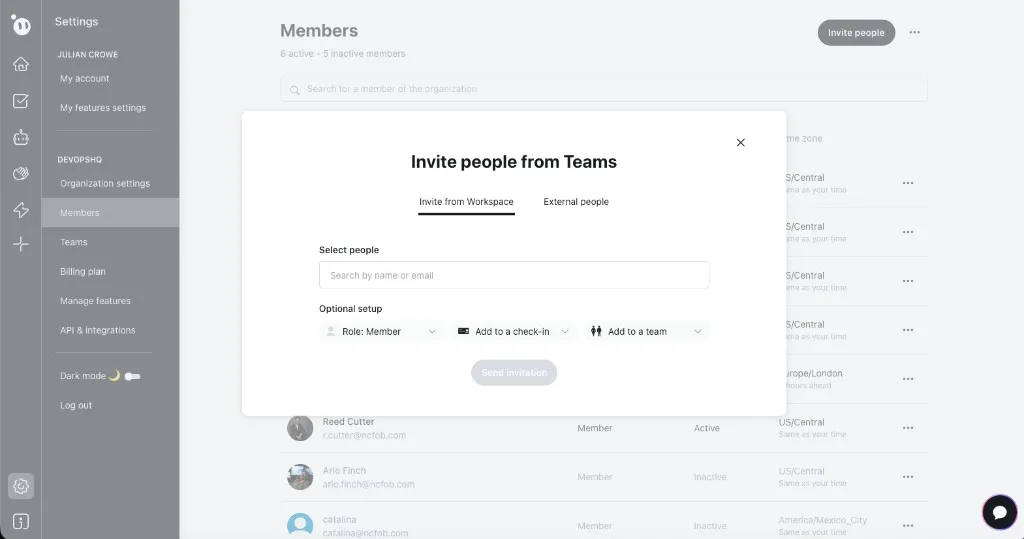
- In the Invite people from Teams dialog, choose the Invite from Workspace tab to see people already in your Teams workspace, or switch to External people to invite by email.
- Search by name or email to find the people you want to add.
- Under Optional setup, choose a Role (Member by default), optionally assign them to a check-in, and optionally add them to a team.
- Click Send invitation.
- If someone does not appear in the search, check that they are licensed for Teams and that the Dailybot app is allowed for them.
What to expect after
Teammates receive an invitation that connects their Microsoft identity to your Dailybot organization. They may see activity in Teams, a browser step, or an email, depending on configuration. After acceptance, they can use Dailybot inside Teams and show up under Members with the role you assigned.