Convidar pessoas externas por e-mail
Convide convidados, prestadores de serviço, colaboradores externos ou qualquer pessoa que não faça parte do seu workspace de chat. A aba External people está disponível em todas as plataformas (Slack, Microsoft Teams, Discord e Google Chat), então você pode usá-la independentemente de qual integração sua organização utiliza.
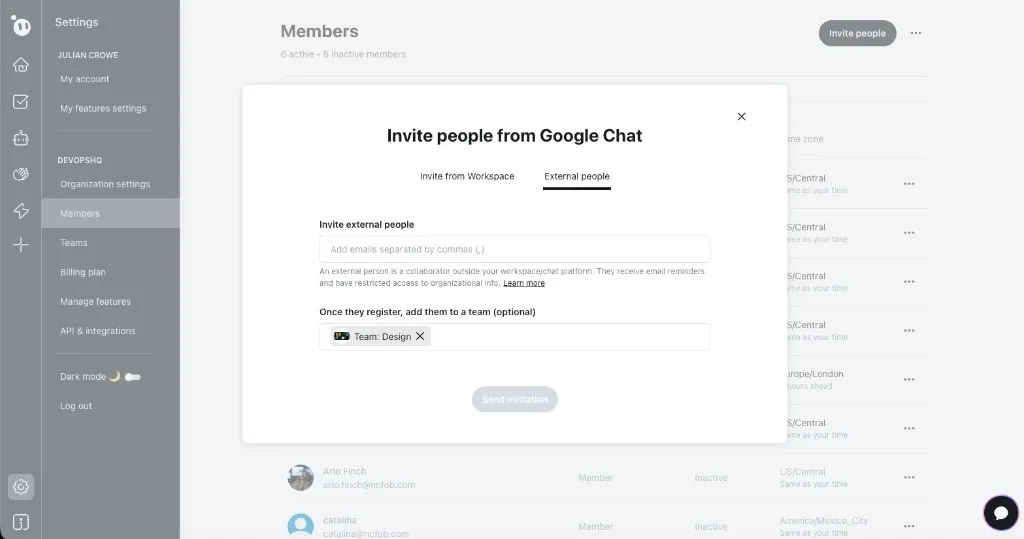
Antes de começar
- Você precisa de permissões de Organization admin ou Team manager.
- Os membros externos contam como assentos ativos na sua organização e são cobrados como qualquer outro membro. Consulte Como funciona o faturamento para mais detalhes.
Passos
- Abra o painel web do Dailybot e faça login.
- Clique em Settings na barra lateral e depois selecione Members.
- Clique no botão Invite people no canto superior direito.
- Selecione a aba External people.
- Digite um ou mais endereços de e-mail separados por vírgulas.
- Opcionalmente, adicione-os a um team para que fiquem organizados desde o início.
- Clique em Send invitation.
O que esperar depois
Cada convidado recebe um e-mail com um link para aceitar o convite e criar sua conta do Dailybot. Depois que aceitam, você pode adicioná-los a check-ins e eles receberão lembretes por e-mail. Os membros externos têm acesso restrito às informações da organização em comparação com os membros do workspace.
FAQ
Os membros externos podem usar o Dailybot em uma plataforma de chat? Sim. Se aceitaram as permissões necessárias ao criar a conta, eles podem receber lembretes de check-in e responder por mensagem direta no Google Chat. Para outras plataformas, eles usam o app web.
Preciso de um plano pago para convidar pessoas externas? Não, mas em um plano pago os usuários externos contam para os assentos do seu plano.