Configuring where check-in reports are posted
The report destination controls where compiled answers go after a round closes.
Two channels, not one: where it asks vs where it reports
A very common confusion: Dailybot uses two different surfaces for each check-in.
| Surface | What it is | Where you set it |
|---|---|---|
| Reminder / question | Where each participant gets the prompt and types answers. By default a DM with the Dailybot bot. | Per-participant; usually the chat platform they joined Dailybot with. |
| Report destination | Where the compiled summary is posted after the round closes. | Sharing tab → Channels to post responses (this article). |
So if a teammate complains “the bot is asking me in DM”, that is normal; the report still lands in the team channel. If the summary is going to the wrong place, this is the page.
Destination options
| Option | Result |
|---|---|
| One or more channels | Summary posts to the Slack, Microsoft Teams, Google Chat, or Discord channel(s) you pick. You can select up to three channels on the Sharing tab. |
| Dashboard only | Results stay in the Dailybot web app; nothing is pushed to chat. |
| Both | Team sees the rollup in channel and full detail remains in the dashboard. |
Change the destination
- Open Check-ins at app.dailybot.com and select the check-in.
- Open the check-in editor (Edit Check-in).
- Open the Sharing tab.
- Under Channels to post responses, search for and select the channel(s) where compiled reports should post (up to three).
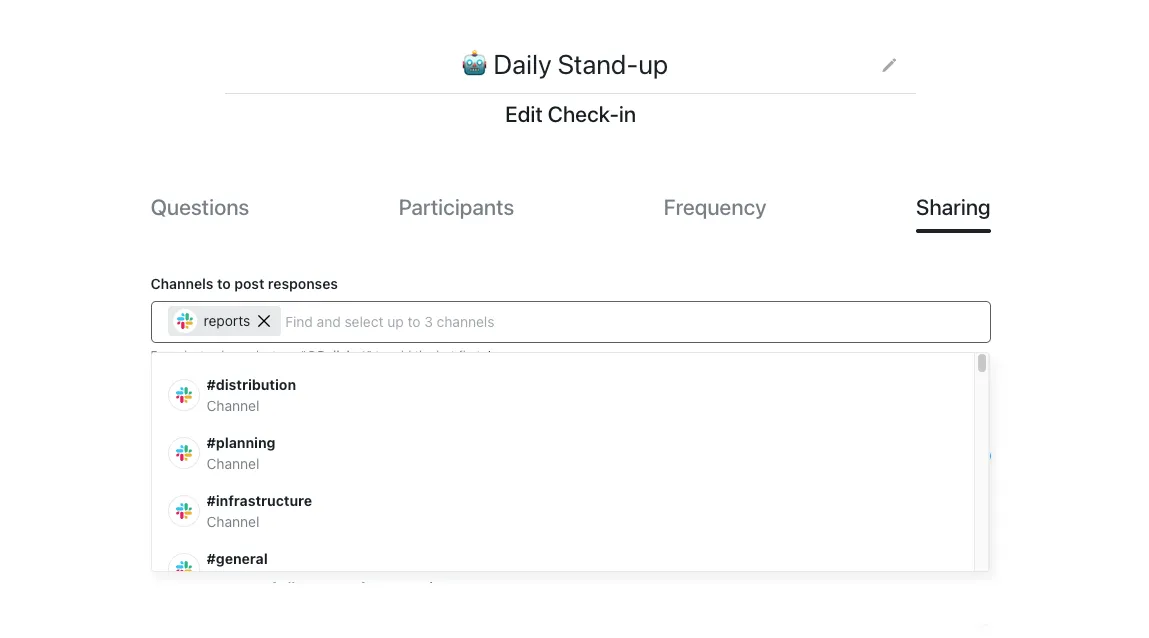
- Optional: under Post a summary of all reports after a set time, turn on Set a time limit for the summary if you want the compiled summary to wait until a cutoff time.
- Save the check-in.
Channel not in the dropdown?
You only need to invite Dailybot when the channel is missing from the picker — most often a private Slack channel, or when the integration list has not refreshed yet.
- In Slack, open the channel and run
/invite @Dailybot. For a private channel, someone already in it must run the invite. - Wait a moment, return to the Sharing tab, and search Channels to post responses again.
If the channel still will not appear or saving fails, see Choose where reports post and give the bot channel access and I can’t find the channel for my report destination.
Move the destination after Slack → Discord (or another platform)
Teams that switch chat platforms often see summaries still land in the old Slack channel while people answer in Discord. The check-in keeps the previous channel ID until you change it.
- Open the check-in in the Dailybot web app.
- Open Edit Check-in → Sharing → Channels to post responses.
- Select the new Discord channel (or Teams / Google Chat channel) — not the legacy Slack channel.
- In Discord,
/invitethe Dailybot bot into that channel and allow Send Messages and Embed Links. - Save the check-in.
- Wait for the next scheduled compile (or run a manual test round) and confirm the summary appears in the new channel.
- Optional: post a note in the old Slack channel so the team knows reports moved.
If summaries are empty or titles-only in Discord after the move, see Discord check-in shows only titles or empty body.
Reminders and DMs follow participant settings; changing the report destination does not migrate where reminders are sent — update participant chat accounts if people moved platforms.
Multiple destinations
On the Sharing tab you can add up to three channels under Channels to post responses. Remove any channel you no longer need. If you need reports in more places, run a second check-in or use exports for extra audiences.
What the posted report looks like
The chat message is usually a compact summary: who submitted, highlights, blocker lines, and a link to open full responses in Dailybot. Formatting adapts to the platform (blocks in Slack, cards in Teams, etc.). Blocker and critical answers are typically emphasized so they are visible without opening the app.
Long answers may be truncated in chat with a “read more” link to the dashboard. Images and attachments follow your workspace’s platform rules. If you switch from dashboard-only to a channel, the next compiled round is the one that starts posting. Past rounds stay in history only.
If reports stop appearing, confirm the bot is still in the channel and that the schedule has run. See Reports not posting when delivery breaks.